TUTORIALS
A quick guide on obtaining data from the King of Fighters series of games
This is mainly thanks to Recruta42 and Fervicante, who were the first to apply this method to velocities (they got the data directly from MAME), but Jesuszilla and I solved the main velocity equation, so the formula can be built from any piece of KOF vel data.
This is also the method I use to get data for my M.U.G.E.N characters. If something seems unclear, please drop me an e-mail so I can explain further and correct it in the tutorial.
Before we start, you're gonna need several things:
- My KOF '94-2002 ArtMoney table. This is in the downloads section of this site.
- ArtMoney
- WinKawaks; it does not matter which version. You will also need a King of Fighters ROM for this, assuming you can legally obtain it. Do not ask me for info on either; search engines are your friends.
- Patience and willingness to learn.
- A beverage, seriously, it helps. :P
This is a list of jargon that I may be using here:
- "Velset": This is commonly used to set velocities in MUGEN, it usually means "starting velocity"
- "Veladd": This is a MUGEN controller that adds to the velocity caused by the "velset" by a constant amount on a frame-by-frame basis. This would be the common acceleration of a uniformly accelerated motion.
- "Velmul": Just like the veladd, except this controller multiplies the velocity by a constant amount every frame.
- "Tick": Generally the MUGEN way of referring to a "frame". Most fighting games run at 60 frames per second; when I'm referring to a "tick" I'm referring to one of these frames.
- "X" prefix: This refers to the X axis assuming we're working on a 2D plane. This refers to the horizontal positions on the screen.
- "Y" prefix: This refers to the Y axis assuming we're working on a 2D plane. This refers to the vertical positions on the screen.
- "Light" prefix: This refers to the "light" version of a special move. In fighting games this usually means using "light punch"/"jab" or "light kick"/"short" button to execute them.
- "Heavy"/"hard" prefix: This refers to the "heavy" version of a special move. In fighting games this usually means using "heavy punch"/"fierce" or "heavy kick"/"roundhouse" button to execute them.
- "Posadd": Shorthand for position offset, this MUGEN controller implies that the character's horizontal position will be changed by the set amount the following frame.
Now that you have my table, you should probably know that this table will work in ANY KOF game from 94 up to 2002 (the architecture changed in KOF2003). This table will give you ACCURATE values for velocities, hitvels, damage, power and offsets. Pretty cool, huh?
It is fairly easy to sync and use. For this tutorial I will be showing you how to do this using WinKawaks 1.58.
First off, you must enter a training session (or VS, if the game lacks that mode) and push your opponent all the way to the right, then move the character you want data from all the way to the left. Like so:
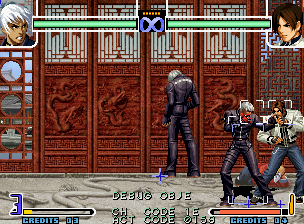
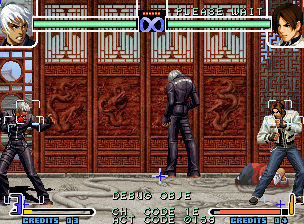
Open up the table with ArtMoney and make sure that WinKawaks is selected as the process you want to use it on.
Click on "Search", and use type "Custom". Uncheck everything but "Integer 2 bytes" and click OK. Click OK again to start the search.
Now move the character a bit to the right and press "Filter", "Unknown value", "Was increased". Click OK.
Now move the character all the way to the left again and click on "Filter", Exact value = "480", and click OK.
A few values should appear in the list on your left. Select one of them, then select "P1 Pos X" in the list on the right and press CTRL + A (or right-click and apply offset to all). You will know you synced with the correct value when the character no longer moves if you "freeze" the Pos X.
ArtMoney should look kinda like this at this point:
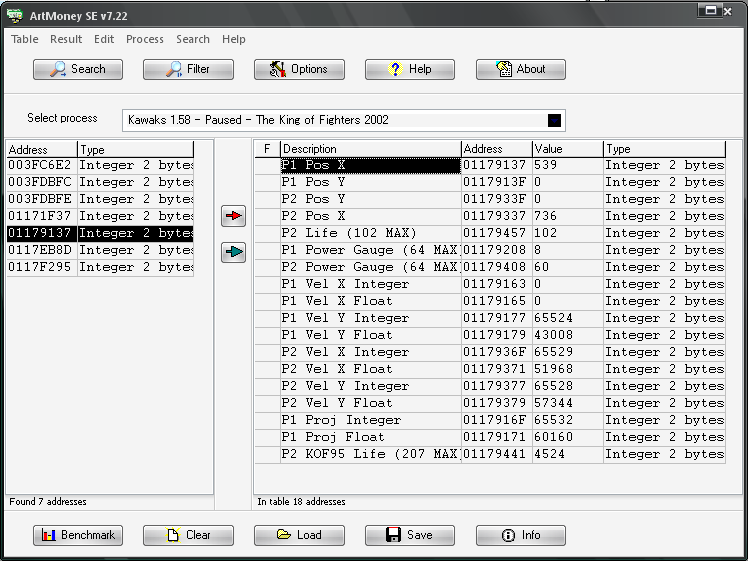
You can get whatever you want with this method. Just a note on how to get the data right:
Velocities
The way KOF handles velocities is simple and straightforward; however, it may confuse you if it's your first time working with this kind of data, so we'll start with the easiest: the Y vel.
The Y vels in KOF are handled just like in MUGEN: a regular velset and veladd (this type of movement is also known as "uniformly accelerated motion", for those familiar with physics). The exception is hitvels (the velocity applied to an opponent when they are getting hit by one of your attacks), which use velmuls instead (I usually calculate these using constant velocity equations for MUGEN). You can check what kind of Y vel you are dealing with by taking a sample of 2-3 ticks (I recommend 3).
The Y vels, however, cannot be accurately translated into MUGEN, as KOF adds the yaccel twice once the velocity is no longer negative (an engine quirk, I suppose). This causes a delay of 1 tick in the land states, which I personally decided to keep in order to maintain the correct feel (for the MUGENers: you can get around this by using Vel Y + Pos Y >= 0 as the land trigger).
To get these, you need to check ArtMoney and the game frame by frame using WinKawaks. You can do this by pausing the game and pressing Shift + Space (draws the next frame). You can input commands this way too. To start with something simple, we'll check K's Y normal jump vel (note that you need to hold up for 8 ticks in order for him to perform his regular jump instead of the hop).
We'll do this tick by tick while checking whether ArtMoney updates the values in "P1 Vel Y Integer" and "P1 Vel Y Float". After a while you'll notice these change to 10 and 16896 respectively. This is our first value.
Now that we have our first value, we need to remember that we can't use it yet, as it is a HEX number. That means using 10.16896 would be incorrect; we must transform it into a decimal value first.
This takes one simple step: divide the "float" value ArtMoney gave us by 65536 (0x10000 in HEX). You should get 0.2578125 as the result. This is our correct float value.
Now that we have the correct float value, we just add the int value ArtMoney gave us to it. That means our first vel is 10.2578125.
But how do we find the Y accel? Easy, we just need to gather a sample of three values for this.
I will take a step ahead and note them down:
- 10.2578125 (Tick 1)
- 9.640625 (Tick 2)
- 9.0234375 (Tick 3)
Now we just need to get the difference between the first and second values (which is 0.6171875). This is apparently the correct Y accel value, but just to make sure, subtract it from the second velocity value: 9.640625 - 0.6171875 = 9.0234375. Success!
This is the process you should follow for any move (hitvels may vary, though), and it should give you perfect results. To put this to correct use, a KOF Y velset should look like this:
From Iori_WLS's heavy Oniyaki:
[State 1101, VelSet]
type = VelSet
trigger1 = !time ;Can be anything
y = -9

[State 1101, pos]
type = Veladd
trigger1 = time > 0 ;Should be one tick after the velset was applied in order to prevent the controller from subtracting velocity before it should.
y = .50
Next are the X velocities.
The X vel is harder to get than the Y vel, due to changes it may have during the move. I usually check the vel throughout the whole move for sudden changes; if there aren't any, then you can easily implement it with a few controllers. However, there are two ways to do it: the advanced way and the easy way.
The easy way is using a combination of velset + velmul. This, however, will result in distance loss (of a few pixels anyway).
We'll try to get the values for K's heavy Minute Spike.
Doing a frame by frame advance, we can observe that there are no sudden vel changes, this means we will only require a few controllers.
First, we'll need the usual three samples from the move:
K's hard Minute Spike:
- 9.53125 (Tick 1)
- 9.08447265625 (Tick 2)
- 8.6586456298828125 (Tick 3)
How do we work with these values and get the mul needed? Easy: you divide the second vel value by the first. That will give you your mul value, in this case, 0.953125.
Now to correctly use this data you will only need two controllers:
Sample from one of Iori_WLS's custom states:
[State 1402, VelSet]
type = VelSet
trigger1 = AnimElem = 8 ;This is when the first velset should be applied.
x = -11.921875

[State 1402, VelMul]
type = VelMul
trigger1 = AnimElemTime(8 ) > 0 ;Just like in the veladd, one tick higher than the velset is required.
x = 0.8515625
That will provide correct velocities in an easy method, but as I mentioned earlier, this may not be 100% precise.
I will now explain the "advanced" way, which involves Euler's number (e). If you take the time to observe the game, you will notice that the accel values change every tick. This is because there is a base accel value being affected by time and Euler's number, which means only two values are needed in order to calculate those velocities: a base accel and a base velocity. Can this be done in MUGEN? The answer is yes.
First off, we will need our usual three samples.
K's hard Minute Spike:
- 9.53125 (Tick 1)
- 9.08447265625 (Tick 2)
- 8.6586456298828125 (Tick 3)
And we will obtain the first accel value, 0.953125.
Now, the basic KOF velocity equation goes like this: y = z · e^(w · x). This translates to: current vel = basevel * e^(baseaccel * time)
I'm going to skip the derivation and show you how to use it. First, you need to take the natural logarithm (ln) of that first accel value: -0.048009219186360607752003625323445. That is your base accel value.
Now, with those two values, you can build the controller and have NEAR PERFECT velocities. This is quite simple, and it takes very little time once you are used to the system. I will build the example controller for this move (K's heavy Minute Spike) in order to show you how it's done.
The accurate X velset controller would be as follows:
[State 1300, Velset]
type = VelSet
trigger1 = 1 ;This controller must trigger in EVERY TICK the vel is active. Can be changed for animelemtime(X) <=/>= if needed.
x = (9.53125*exp((-0.048009219186360607752003625323445)*(time)))
The "time" used in the equation is EXTREMELY important: it must ALWAYS be zero when the vel is set. That means that if you first trigger your vel at time = 3 of the character's state, you will need to use (time-3) in order for the equation to multiply by 0 on the first tick of your vel.
In addition, I recommend using DisplayToClipboard to check that the first three vel values match the ones you got in ArtMoney. If they do, you are good to go.
This method may look complicated, but it's shorter and very clean once you get used to it.
Don't forget that you also need to use physics = N for this!
Posadds
Something I thought I'd mention: some KOFs will show this as a vel value, some won't. So I recommend you check whether the character moved during a move, in case it requires posadds. The pos values are integers, so it's a basic operation here. As long as you keep a constant eye on the X positions using the table, you won't have a problem.
Damage and power
Damage and power maximums vary from KOF to KOF; you can use the table to see the MAX values for the current KOF. The formula to convert the values to MUGEN is quite simple:
damagevalue / maxlife * 1000 = MUGEN damage value
This also works for POWER values. It is quite simple, really.
I hope this helps!
Feel free to drop me a question or check my MUGEN works for further reference.
Until next time!
~ Vans